Setup
This page collects the student laptop and robot software setup steps used by the course.
Install Visual Studio Code
- Search for
codein the App Center and install Visual Studio Code. - Open a project directory with
code .from the terminal. - When prompted, trust the authors of the course folder.
Clone the Course Repository
The public course repository is:
https://github.com/ripl/hs-robotic-manipulation-course
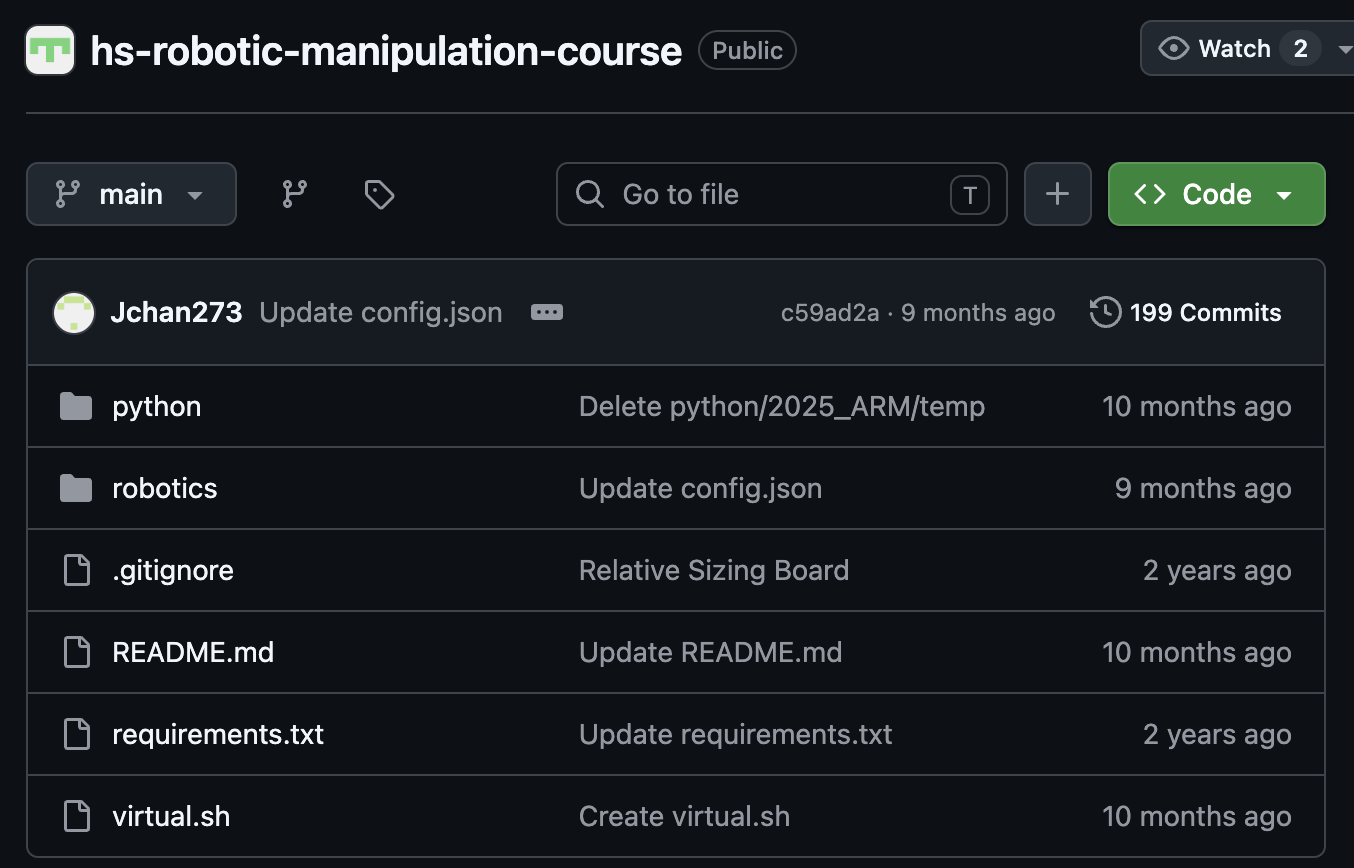
- Press the green Code button and copy the HTTPS URL.
- In a terminal, navigate to the directory where the repository should live.
- If needed, install Git:
sudo apt install git
- Clone the repository:
git clone https://github.com/ripl/hs-robotic-manipulation-course.git
cd hs-robotic-manipulation-course
Set Up Python
The repository includes a helper script, virtual.sh, and a standard requirements.txt.
chmod +x ./virtual.sh
./virtual.sh
source env/bin/activate
pip install -r requirements.txt
When returning to the project later, activate the environment again:
source env/bin/activate
Deactivate when finished:
deactivate
Install Dynamixel Wizard 2.0
Install Linux dependencies:
sudo apt install libxcb-icccm4 libxcb-image0 libxcb-keysyms1 libxcb-render-util0
Then download the Linux x64 installer from the Robotis documentation:
https://docs.robotis.com/docs/software/dynamixel_wizard_2_0/introduction/
From the download directory:
chmod 755 DynamixelWizard2Setup-linux-x64.run
./DynamixelWizard2Setup-linux-x64.run
Follow the installer prompts.
Troubleshooting Python Builds
On some Linux machines, Python or package installation may require development libraries:
sudo apt update
sudo apt install -y make build-essential libssl-dev zlib1g-dev \
  libbz2-dev libreadline-dev libsqlite3-dev wget curl llvm \
  libncurses5-dev libncursesw5-dev xz-utils tk-dev \
  libffi-dev liblzma-dev python3-openssl git
Safety
Before controlling the arm, confirm that students know how to disconnect power. Use small position changes when first testing motors. A large command can drive the arm into the table or into itself.